Introduction
When buying mobile LCD screens, you’re not just buying a piece of glass with pixels. You’re investing in a product whose touch layer directly impacts the user experience. Imagine replacing a screen, only for your customer to complain that swiping feels like dragging a finger through syrup. This is why touch quality testing before purchase is essential.
Understanding the Touch Layer
The touch layer is the invisible hero sitting above the display, detecting every tap, swipe, and pinch you make. In modern smartphones, most use capacitive touch technology—fast, responsive, and accurate. Low-quality versions, however, may lag, misinterpret gestures, or have dead zones.
Common issues in poor touch layers include:
- Touch delay: Actions register seconds late.
- Dead spots: Certain areas never respond.
- Ghost touches: The screen registers touches you didn’t make.
Knowing this helps you spot problems early in your purchasing process.
Preparing for the Touch Test
Before diving into tests, gather:
- The mobile LCD screen
- A smartphone or testing device
- A drawing app (any simple sketching app will work)
- A multi-touch test app (free on app stores)
Environment tips:
- Test indoors with no glare.
- Avoid moisture or dusty environments that may affect results.
- Handle LCDs carefully—no bending or pressing too hard.
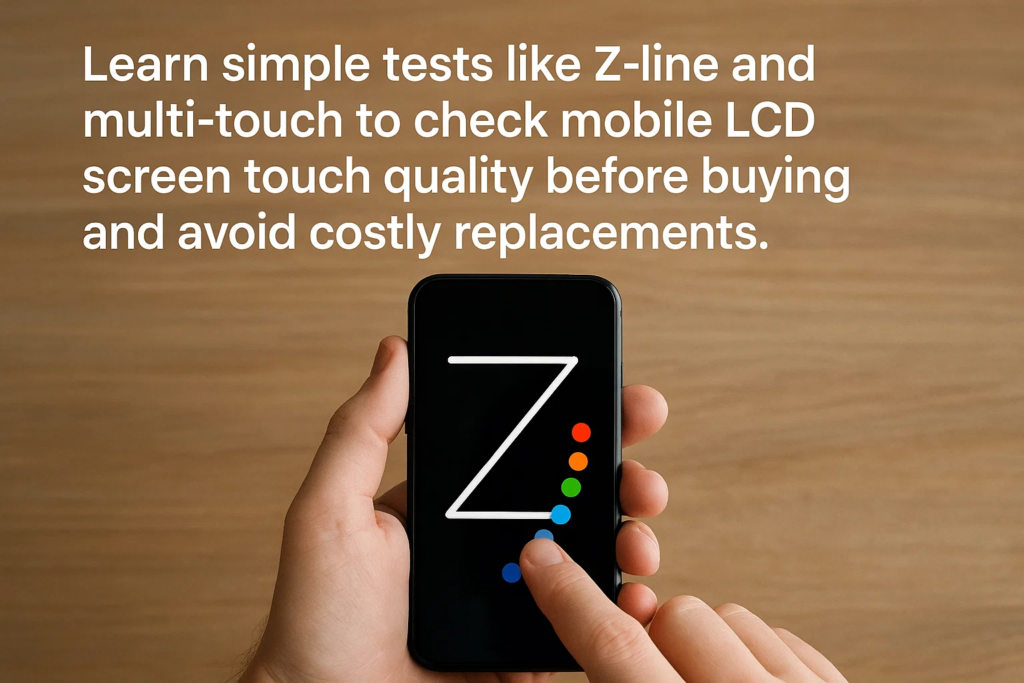
The Drawing App Z-Line Test
This is your first must-do test.
- Open a basic drawing app.
- Select a thin brush for better visibility.
- Draw continuous Z-shaped lines that cover the full screen.
- Watch for:
- Breaks (indicating touch detection failure)
- Skips (touch jumps to another spot)
- Ghost lines (phantom touches appear)
If your lines are crisp and complete without gaps, your touch layer passes the first hurdle.
Multi-Touch Ten-Finger Test
Why test with ten fingers? Because real-world use involves multi-touch gestures—pinch-to-zoom, multi-finger swipes, and gaming controls.
- Install a multi-touch test app.
- Place all ten fingers on the screen at the same time.
- Ensure the app detects every single touch point.
- If any finger doesn’t register, the panel may have limited multi-touch capability—a red flag for gaming or advanced app use.
Edge Sensitivity Test
Edges are notorious for failing first, especially in budget screens.
- Tap repeatedly along the very edges of the screen.
- Notice any delayed or missing responses.
- Poor edge detection affects typing, scrolling, and gaming.
Smooth Drag Test
Finally, test how well the screen handles dragging:
- Hold and drag an app icon or shape across the display.
- Check for stutters, jumps, or resistance.
- Smooth and uninterrupted movement means the touch layer is well-calibrated.
Interpreting the Results
- Pass all tests? Likely a high-quality touch layer.
- Fail in one or more? Even minor failures can lead to major user dissatisfaction.
- Always compare with a known OEM reference screen for benchmarking.
Common Touch Screen Issues & Causes
| Issue | Likely Cause |
|---|---|
| Touch delay | Low-grade touch IC or firmware |
| Ghost touches | Poor shielding, interference |
| Dead spots | Defective touch sensor grids |
| Edge malfunction | Incomplete touch matrix coverage |
Best Practices for Procurement
- Test before paying for bulk shipments.
- Record video proof of failed units for supplier claims.
- Keep a sample from each batch for future reference.
Avoiding Counterfeit Screens
- Watch out for fake OEM labels—check font, print quality, and alignment.
- Genuine packaging is sturdy, with proper cushioning.
- Only work with verified suppliers with a track record.
Maintaining Touch Performance
- Install screens gently—avoid over-tightening screws.
- Use thin, high-quality screen protectors.
- Keep away from moisture and extreme heat.
Conclusion
Testing mobile LCD touch layers is not optional—it’s essential. Using a drawing app Z-line test, a ten-finger multi-touch test, edge tapping, and a smooth drag test ensures you spot problems early. This saves you from costly returns, angry customers, and wasted time.
FAQs
1. Can I test touch quality without a specialized app?
Yes, but specialized apps make detection easier and more accurate.
2. How do I know if a screen is OEM quality?
Compare touch responsiveness, smoothness, and packaging with an original manufacturer screen.
3. Why do edges fail faster than the center?
The touch grid wiring is more vulnerable along edges, especially in low-quality builds.
4. Is the Z-line test enough to confirm touch quality?
No. Combine it with multi-touch, edge, and drag tests for a complete evaluation.
5. Should I test every unit or just random samples?
For high-value orders, test every unit. For bulk, random testing is acceptable but riskier.