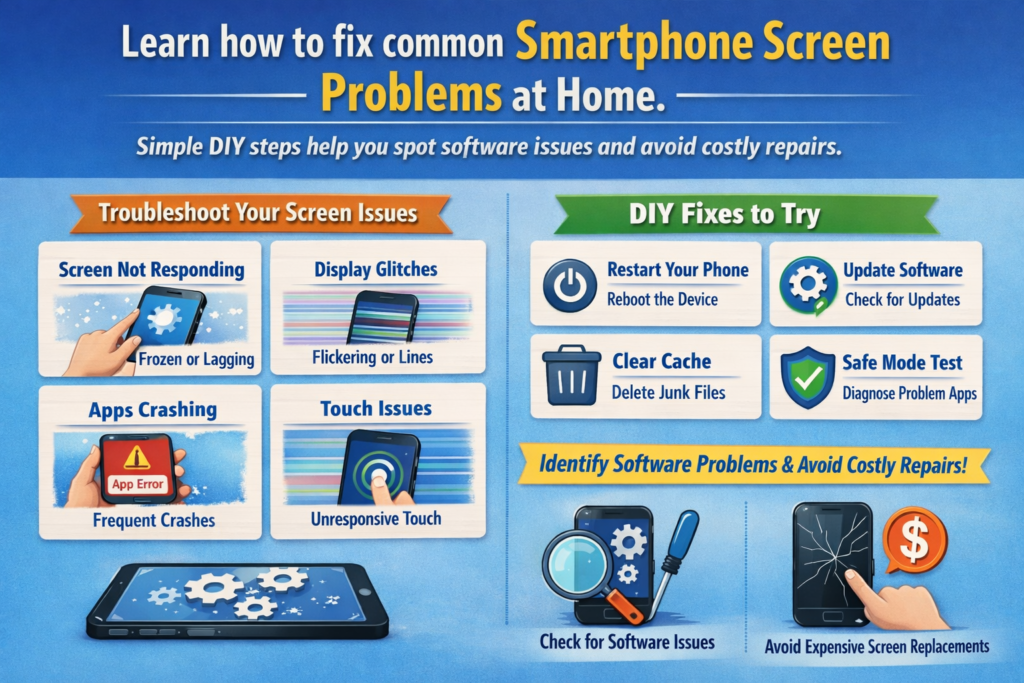
Réamhrá - Cén Fáth nach mbíonn do Scáileán Fón “Briste” i gcónaí
Bímis macánta - nuair a thosaíonn scáileán gutháin ag gníomhú aisteach, léim formhór na ndaoine díreach go dtí mód scaoll. “Go hiontach, deisiúchán daor eile,” ar dheis? Ach seo an buama fírinne: ní chiallaíonn gach fadhb scáileáin damáiste crua-earraí. Go deimhin, is cúis le líon mór saincheisteanna taispeána de bharr glitches bogearraí, socruithe míchumraithe, nó tiománaithe as dáta.
Crua-earraí vs. Saincheisteanna Scáileáin Bogearraí
Tarlaíonn damáiste crua-earraí de ghnáth le comharthaí soiléire - scoilteanna, spotaí dubha, picteilíní marbh nach n-athraíonn riamh. Saincheisteanna bogearraí, ar an láimh eile, atá sneaky. Léiríonn siad suas mar shifts dath, freagraí laggy touch, ag caochadh, nó gile ar cosúil go bhfuil aigne dá chuid féin aige.
Cén Féadann Fabhtcheartú DIY Airgead a Shábháil Tú
Smaoinigh ar do ghuthán cosúil le carr. Má stopann an raidió ag obair, níl tú in ionad an innill. Mar an gcéanna, is féidir go leor fadhbanna scáileáin a réiteach i nóiméid -saor in aisce- leis na céimeanna cearta. Is é an treoir seo d’fhoireann uirlisí ar chostas íseal chun saincheisteanna scáileáin bogearraí-bhunaithe a shocrú sula dtugann tú do sparán chuig siopa deisiúcháin.
Fadhbanna Bogearraí Scáileán Smartphone a Thuiscint
Conas a Rialaíonn Bogearraí Iompar Taispeána
Ní gloine agus picteilín amháin atá i scáileán do ghutháin. Taobh thiar de na radhairc, an córas oibriúcháin, Tiománaithe taispeáint, agus oibríonn firmware le chéile chun gile a rialú, dathanna, ráta athnuachana, agus freagra tadhaill.
Ról an OS, Tiománaithe, agus Calabrú
- OS bainistíonn socruithe os comhair úsáideoirí
- Tiománaithe cumarsáid a dhéanamh le crua-earraí taispeána
- Próifílí calabrúcháin dath míntiún agus cruinneas tadhaill
Nuair a théann aon cheann díobh seo mícheart, Tosaíonn do scáileán mí-iompair - fiú má tá na crua-earraí go foirfe.
Taispeáin Fadhbanna saobhadh Dath
Comharthaí Coitianta Saincheisteanna Datha
An bhfuil cuma buí ar do scáileán? Ró-ghorm? Cosúil le duine éigin cranked an saturation go 200%? Níl tú i d'aonar.
Tint Bhuí, Rósháithiú, agus Dathanna Nite Amach
Is minic is cúis leis na saincheisteanna seo:
- Modh oíche nó scagairí solas gorm
- Próifílí dath mícheart
- Bugs bogearraí tar éis nuashonruithe
Ceartúcháin Céim ar Chéim le haghaidh Saobhadh Datha
Coigeartú Socruithe Taispeána
Tosaigh simplí:
- Díchumasaigh Solas Oíche / Mód chompord súl
- Athraigh idir Nádúrtha, beoga, nó Modhanna caighdeánacha datha
- Athshocraigh socruithe taispeána go réamhshocrú
Uirlisí Calabrú Datha
I measc roinnt fóin tá uirlisí calabraithe ionsuite. Mura bhfuil, is féidir le haipeanna calabraithe iontaofa cabhrú le luachanna RGB agus gáma a athailíniú - ná déan ró-dhéanamh air.
Auto-Gile Gan Obair i gceart
Cén Fáth a Theipeann ar Ghile Auto
Braitheann uathghile ar bhraiteoirí solais chomhthimpeallaigh. Nuair a chuireann glitches bogearraí nó sonraí truaillithe isteach, téann leibhéil gile haywire.
Mí-ailíniú Braiteoir agus Bugs Bogearraí
Uaireanta oibríonn an braiteoir go breá, ach “d’fhoghlaim” an córas drochshonraí le himeacht ama.
Conas Saincheisteanna Auto-Gile a Réiteach
Athshocrú Gile Oiriúnaitheach
- Múch uath-gile
- Atosaigh an fón
- Cuir ar siúl arís é agus cuir oiliúint arís air i gcoinníollacha soilsithe éagsúla
Taisce an Chórais Imréitigh
Is féidir le glanadh taisce córais deireadh a chur le fabhtanna atá fágtha tar éis nuashonruithe - níl aon chaillteanas sonraí i gceist.
Lag Scáileáin Tadhaill agus Teagmháil Neamhfhreagrach
Rudaí is Cúiseanna le Cur isteach ar Scáileán Tadhaill
Is minic a nasctar freagairt dteagmháil laggy nó briste:
- Aipeanna cúlra acmhainní hogging
- Forleagan cosúil le taifeadáin scáileáin
- Coinbhleachtaí bogearraí
Coimhlint App agus Próisis Chúlra
Tá an iomarca aipeanna á rith cosúil leis an iomarca cócairí sa chistin - ní oibríonn aon rud go réidh.
Sofhreagracht Touchscreen a Shocrú
Tástáil Mód Sábháilte
Tosaigh i Mód Sábháilte. Má oibríonn an scáileán tadhaill go breá, comhghairdeas - d'aithin tú culprit bogearraí.
Calabrú Íogaireachta Tadhaill
Ligeann go leor fóin athchalabrú tadhaill nó íogaireacht mhéadaithe, úsáideach go háirithe tar éis nuashonruithe córais.
Ghost Touch agus Ionchuir Randamach Scáileáin
Cad é Ghost Touch?
Tarlaíonn teagmháil taibhse nuair a chláraíonn do scáileán tadhaill nach ndearna tú. Spooky? Tá. Buan? De ghnáth ní.
Ceartúcháin Bogearraí Roimh Scaoill
Nuashonruithe Firmware
Is minic a dhéanann monaróirí saincheisteanna tadhaill taibhse a réiteach go ciúin trí nuashonruithe. Fanacht reatha i gcónaí.
Coigeartuithe Ráta Athnuachan Scáileáin
Aistriú idir 60Hz, 90Hz, nó is féidir le 120Hz uaireanta iompar ionchuir tadhaill a chobhsú.
Ceisteanna Scáileáin Flickering agus Gealánacha
Nuair nach Damáiste Crua-earraí é Flickering
Is minic go mbíonn baint ag caochaíl ar ghile íseal le PWM atá rialaithe ag bogearraí (Modhnú Leithead Pulse).
Réitigh ar Féidir Bain triail astu sa Bhaile
Díchumasaigh Forleagan Crua-earraí
Cuireann an rogha forbróra seo iallach ar an GPU rindreáil a láimhseáil, ag laghdú flicker i gcásanna áirithe.
Coigeartaigh PWM agus Socruithe Gile
Is féidir le gile a ardú beagán nó gnéithe oiriúnaitheacha a dhíchumasú an taispeáint a chobhsú.
Lag Taispeána, Stutter, agus Frame Drops
Conas a théann Bogearraí i bhfeidhm ar Smoothness Screen
Seans go mbeidh do thaispeántas in ann feidhmiú rianúil, ach is féidir le scrogaill bogearraí an taithí a mhilleadh.
Céimeanna Barrfheabhsaithe Feidhmíochta
Athnuaigh Socruithe Ráta
Socraigh do ghuthán go ráta ard athnuachana seasta má tá sé ar fáil.
Scála Beochana an Chórais
Má laghdaítear scála beochana, mothaíonn gach rud níos tapúla - cosúil le lámhaigh caiféin a thabhairt do do ghuthán.
Reo Scáileáin nó Scáileán Dubh (Ach Tá Fón Ar siúl)
Cúiseanna Coitianta Bugs Scáileáin Duibhe
Tuairteanna córais, nuashonruithe theip, nó is féidir le coinbhleachtaí app an taispeáint a reoiteáil fad is atá an fón fós ar siúl.
Ceartúcháin DIY Gan an Fón a Oscailt
Fórsa Atosaigh
Glanann sé seo tuairteanna córas sealadach - simplí, tapa, agus éifeachtach.
Uirlisí Deisiúchán OS
Tairgeann roinnt brandaí fóntais deisiúcháin oifigiúla a athshuiteálann comhpháirteanna an chórais gan chailliúint sonraí.
Tábhacht Nuashonruithe Córais agus Tiománaithe
Cén Fáth a Briseann Tiománaithe As dáta Taispeántais
Feidhmíonn tiománaithe mar aistritheoirí idir bogearraí agus crua-earraí. Bíonn seanaistritheoirí ina gcúis le míthuiscintí - nó bugs.
Cleachtais Nuashonraithe Sábháilte
- Bain úsáid as nuashonruithe oifigiúla amháin
- Seachain bogearraí béite ar fheistí laethúla
- Cúltaca roimh nuashonruithe móra
Nuair a Briseann Aipeanna Tríú Páirtí Do Scáileán
Aipeanna Fadhbacha a Aithint
Lainseálaithe, scagairí, dimmers scáileáin, agus teanndáileoirí cluiche is trioblóideoirí coitianta iad.
Cead Aipe agus Saincheisteanna Forleagan
Díchumasaigh ceadanna “tarraingt thar aipeanna eile” agus déan iompraíocht scáileáin a thástáil arís.
Leideanna Coisctheacha chun Fadhbanna Scáileáin sa Todhchaí a Sheachaint
Nósanna Socruithe Cliste
- Seachain socruithe gile mhór fadtéarmach
- Teorainn a chur le feidhmchláir chúlra
- Bain úsáid as téamaí oifigiúla agus lainseálaithe
Seicliosta Cothabhála Bogearraí
Smaoinigh air seo mar scuabadh do chuid fiacla – leadránach ach is gá.
Nuair a Stopann DIY - Eolas faoin Tairseach Deisiúcháin
Comharthaí Teastaíonn Deisiúchán Gairmiúil uait i ndáiríre
Má leanann fadhbanna tar éis athshocrú, nuashonruithe, agus tástáil mód sábháilte, d'fhéadfadh go mbeadh deisiú crua-earraí dosheachanta. Ar a laghad anois, beidh a fhios agat go cinnte.
Conclúid – Bí i do Dhochtúir Scáileáin Smartphone Féin
Níl scáileán do ghuthán cliste chomh leochaileach nó chomh mistéireach agus is cosúil. Tá go leor saincheisteanna bunaithe ar bhogearraí agus is féidir iad a shocrú go hiomlán le beagán foighne agus fios gnó. Trí na réitigh DIY seo a thriail ar dtús, is féidir leat airgead a shábháil, deisiúcháin neamhriachtanach a sheachaint, agus síneadh do shaolré do ghutháin. Smaoinigh ar an treoir seo mar do threalamh garchabhrach le haghaidh fadhbanna scáileáin - bíonn sé ann i gcónaí nuair a bhíonn sé de dhíth ort.
Ceisteanna Coitianta
1. An féidir le bogearraí a bheith ina gcúis le fadhbanna tromchúiseacha scáileáin?
Cinnte. Tá go leor saincheisteanna taispeána rialaithe ag bogearraí agus inchúlaithe.
2. Scriosfaidh athshocrú socruithe mo shonraí?
Níl. Ní chuireann an chuid is mó d'athshocraíochtaí taispeána agus córais isteach ar chomhaid phearsanta.
3. An bhfuil aipeanna calabraithe tríú páirtí sábháilte?
Tá apps iontaofa sábháilte go ginearálta, ach seiceáil léirmheasanna agus ceadanna i gcónaí.
4. Cé chomh minic is cóir dom mo chóras gutháin a nuashonrú?
Go rialta, ach seachain leaganacha béite éagobhsaí ar fheistí príomhúla.
5. Cathain ba chóir dom stop a chur le fabhtcheartú DIY?
Mura gcabhraíonn modh sábháilte agus athshocrú monarchan, is dócha go mbeidh gá le deisiú crua-earraí.