Zavedení
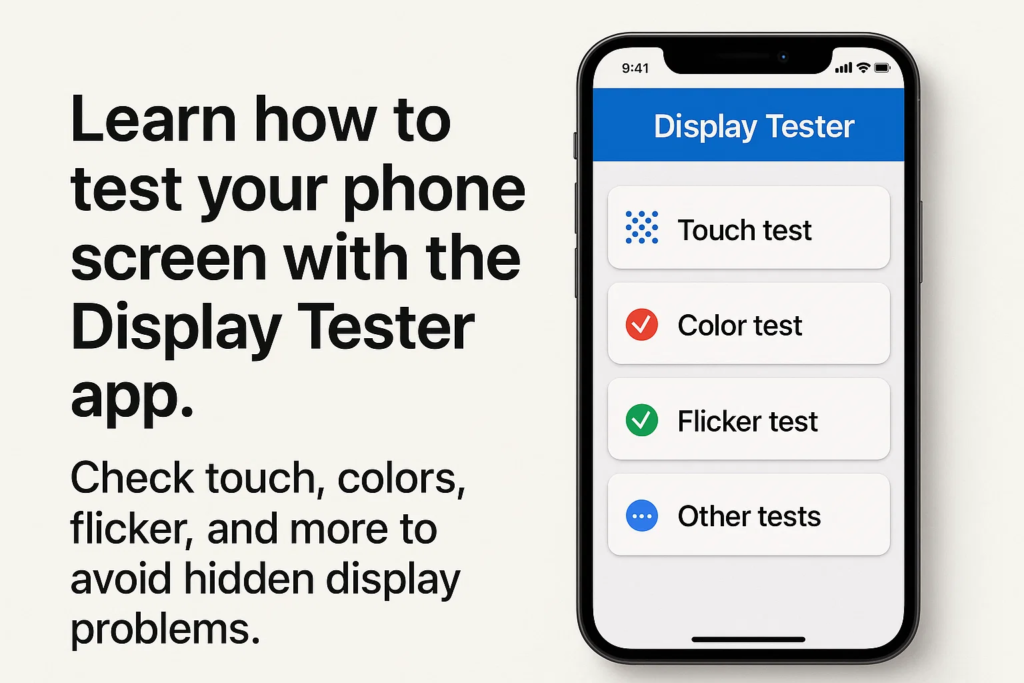
Někdy si koupil telefon a měl pocit, že obrazovka není úplně v pořádku? Možná barvy vypadaly nestejnoměrně, dotek nebyl přesný, nebo displej při nízkém jasu blikal. to je kde testování displeje na místě se stává kritickým. s Aplikace Display Tester, můžete okamžitě spustit testy na profesionální úrovni, šetří čas a vyhýbá se nákladným chybám.
Začínáme s testerem displeje
Před ponořením do testů, budete muset nastavit aplikaci:
- Stáhnout: Dostupné v Obchodě Google Play pro většinu zařízení Android.
- Požadavky: Funguje nejlépe na Androidu 6.0 a výše.
- Instalace: Rychlé a přímočaré – stačí stáhnout, instalovat, a otevřít.
Klíčové vlastnosti Display Testeru
Proč je tato aplikace tak oblíbená mezi opravnami a technickými nadšenci?
- Nástroje pro přesnost dotykové obrazovky
- Kontrola stejnoměrnosti barev
- Detekce blikání (speciálně pro OLED obrazovky s PWM stmíváním)
- Testy mrtvých pixelů a přechodů
- Jas, kontrast, a testy pozorovacích úhlů
Rozhraní je čisté, jednoduchý, a navrženy pro rychlé použití na místě.
Touch Test – Kontrola přesnosti dotyku
Co je to dotykový test?
A Klepněte na Test ověřuje, zda jsou pohyby vašich prstů na obrazovce přesně sledovány.
Jak provést dotykový test v Testeru displeje
- Otevřete Klepněte na Test funkce v aplikaci.
- Táhněte prstem po obrazovce.
- Zkontrolujte, zda nakreslené čáry hladce sledují váš prst bez mezer nebo skoků.
Proč záleží na přesnosti dotyku
Pokud jsou dotyky špatně zarovnané, psaní na stroji, hraní her, nebo dokonce rolování může být frustrující.
Běžné problémy zjištěné během dotykových testů
- Mrtvé dotykové zóny
- Zpožděná odpověď
- Doteky duchů (když obrazovka reaguje bez vstupu)
Jednotnost barev – zajištění rovnoměrných barev
Pochopení jednotné barvy
Jednotnost barev znamená, že by se měla zobrazit obrazovka konzistentní odstíny přes displej bez podivných záplat.
Spuštění testu stejnoměrnosti barev
- Vyberte Test stejnoměrnosti barev v aplikaci.
- Na obrazovce se zobrazí plné barvy (červený, zelený, modrý, šedá, bílý).
- Zkontrolujte oblasti, které vypadají tmavší, zapalovač, nebo jinak tónované.
Identifikace nerovných polí nebo přechodů
Nerovnoměrné barvy mohou indikovat problémy s kvalitou panelu, poškození kapalinou, nebo výrobní vady.
Jak nekonzistence barev ovlivňuje uživatelský dojem
I z malých nesrovnalostí lze udělat fotografie, videa, nebo webové stránky vypadají zkreslené.
Test blikání – Detekce stmívání PWM
Co je to blikání a proč na tom záleží?
Používá mnoho obrazovek OLED PWM (Pulse-Width Modulation) pro ovládání jasu. To může způsobit neviditelné blikání, což vede k bolestem hlavy nebo namáhání očí.
Jak spustit test blikání pomocí Display Testeru
- Otevřete Test blikání volba.
- Snižte jas na 10–20 %.
- Podívejte se pozorně (nebo nahrávat zpomalenou kamerou) rozpoznat vzory blikání.
Detekce blikání PWM na obrazovkách OLED a LCD
- OLED obrazovky často silně blikají při nízkém jasu.
- LCD obrazovky obvykle vykazují méně blikání, ale špatné panely mohou mít stále problémy.
Zdravotní problémy související s blikáním obrazovky
Dlouhodobé vystavení blikání může způsobit:
- Namáhání očí
- Bolesti hlavy
- Poruchy spánku
Další užitečné testy v Testeru zobrazení
Kromě velké trojky, Display Tester také obsahuje:
- Testy jasu a kontrastu – zajišťuje dobrou čitelnost na jasném slunci.
- Detekce mrtvých pixelů – pomáhá identifikovat zaseknuté nebo vadné pixely.
- Zkoušky úhlu pohledu – kontroluje, zda se barvy posouvají při pohledu ze strany.
Praktické případy použití
Kdo může těžit z Display Testeru?
- Opravny telefonů: Rychle ověřte výměny obrazovky.
- Velkoobchody/prodejci: Před odesláním otestujte kvalitu šarže.
- Koncoví uživatelé: Zkontrolujte nově zakoupená zařízení, zda nemají skryté vady.
Tipy pro přesné testování na místě
- Otestujte se neutrální osvětlení (vyhněte se příliš světlým místnostem).
- Proveďte několik testů pro konzistenci.
- Udržujte jas na různých úrovních, abyste mohli porovnávat výsledky.
- Pořizujte fotografie nebo videa pro záznam.
Výhody používání Display Testeru oproti jiným aplikacím
- Přesnější a spolehlivější výsledky
- Širší škála testů v jednom balení
- Jednoduchý design vhodné pro profesionály i běžné uživatele
Běžné chyby, kterým se mu vyhnout
- Spoléhat se pouze na jeden test
- Ignorování jemného blikání při nízkém jasu
- Testování za zhoršených světelných podmínek
- Nesprávná interpretace problémů s jednotností barev jako softwarových chyb
Příklad pracovního postupu krok za krokem
Pro a kompletní kontrola, postupujte podle této sekvence:
- Klepněte na Test → Zajistěte hladké sledování
- Jednotnost barev → Zkontrolujte rovnoměrné odstíny
- Test blikání → Ověřte stabilitu obrazovky při nízkém jasu
- Spusťte volitelné doplňky (mrtvý pixel, kontrast, atd.)
Odborné poznatky
Profesionálové milují Display Tester, protože:
- To šetří čas ve srovnání s manuálními kontrolami.
- To buduje důvěru zákazníků tím, že předem prokážete kvalitu obrazovky.
- Může předcházet sporům dokumentováním výsledků testů.
Budoucnost testování obrazovky na místě
Jak technologie displeje postupuje, můžeme vidět:
- Detekce defektů poháněná umělou inteligencí
- Vestavěné aplikace pro diagnostiku telefonu
- Standardizované testování pro trhy oprav a dalšího prodeje
Závěr
Pokud chcete zjistit problémy s obrazovkou než vás budou stát peníze nebo pohodlí, a Aplikace Display Tester je nutností. Z přesnost dotyku na barevná jednotnost a detekce blikání, tato aplikace zpřístupňuje kontroly na profesionální úrovni komukoli, přímo z jejich telefonu.
Časté časté
1. Lze Display Tester použít na všech zařízeních Android?
Ano, funguje na většině telefonů a tabletů Android se systémem Android 6.0 a výše.
2. Funguje Display Tester pro iPhone?
Žádný, v současné době je k dispozici pouze pro zařízení Android.
3. Jak přesný je test blikání ve srovnání s laboratorním vybavením?
I když nejsou tak přesné jako laboratorní nástroje, je velmi efektivní pro praktické kontroly na místě.
4. Je Display Tester zdarma nebo placený?
K dispozici je bezplatná verze se základními funkcemi, a profesionální verze s pokročilými nástroji.
5. Mohu použít Display Tester pro tablety a monitory?
Ano, pokud používají Android nebo jsou připojeny k testovacímu systému založenému na Androidu.