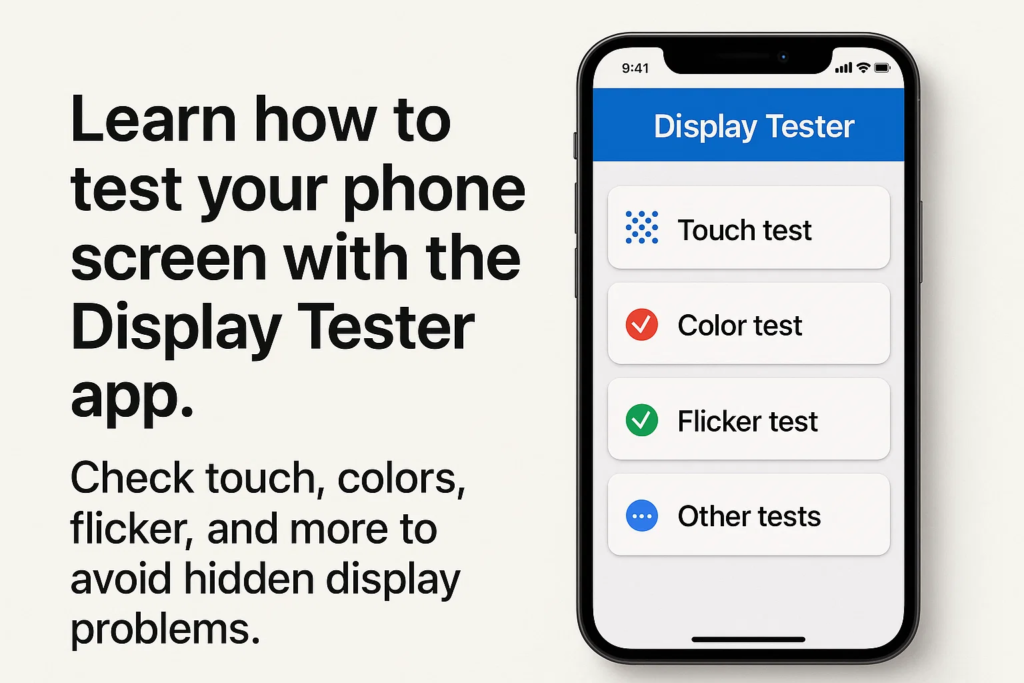
Introducción
Alguna vez compraste un teléfono y sentiste que la pantalla no estaba del todo bien? Tal vez los colores se veían desiguales, el toque no fue preciso, o la pantalla parpadeó con un brillo bajo. Ahí es donde pruebas de visualización en el sitio se vuelve crítico. Con el Aplicación Probador de pantalla, puedes ejecutar pruebas de nivel profesional al instante, ahorrando tiempo y evitando errores costosos.
Primeros pasos con el probador de pantalla
Antes de sumergirnos en las pruebas, necesitarás configurar la aplicación:
- Descargar: Disponible en Google Play Store para la mayoría de los dispositivos Android.
- Requisitos: Funciona mejor en Android 6.0 y arriba.
- Instalación: Rápido y sencillo: solo descárgalo, instalar, y abierto.
Características clave del probador de pantalla
¿Qué hace que esta aplicación sea tan popular entre los talleres de reparación y los entusiastas de la tecnología??
- Herramientas de precisión de pantalla táctil
- Comprobaciones de uniformidad de color.
- Detección de parpadeo (especialmente para pantallas OLED con atenuación PWM)
- Pruebas de gradiente y píxeles muertos
- Brillo, contraste, y pruebas de ángulo de visión
La interfaz está limpia., simple, y diseñado para un uso rápido en el sitio.
Prueba táctil: comprobación de la precisión táctil
¿Qué es una prueba de tacto??
A Prueba táctil verifica si los movimientos de sus dedos se siguen con precisión en la pantalla.
Cómo realizar una prueba táctil en Display Tester
- Abre el Prueba táctil función en la aplicación.
- Arrastra el dedo por la pantalla.
- Comprueba si las líneas dibujadas siguen tu dedo suavemente, sin espacios ni saltos..
Por qué es importante la precisión táctil
Si los toques están desalineados, mecanografía, juego de azar, o incluso desplazarse puede resultar frustrante.
Problemas comunes detectados durante las pruebas táctiles
- Zonas de contacto muerto
- Respuesta retrasada
- Toques fantasma (cuando la pantalla reacciona sin entrada)
Uniformidad del color: garantizar colores uniformes
Comprender la uniformidad del color
La uniformidad del color significa que su pantalla debería mostrar tonos consistentes en la pantalla sin parches extraños.
Ejecución de la prueba de uniformidad del color
- Seleccione el Prueba de uniformidad de color en la aplicación.
- La pantalla mostrará colores sólidos. (rojo, verde, azul, gris, blanco).
- Inspeccione las áreas que parecen más oscuras., encendedor, o teñido de manera diferente.
Identificar parches o gradientes desiguales
Los colores desiguales pueden indicar problemas de calidad del panel, daño líquido, o defectos de fabricación.
Cómo la inconsistencia del color afecta la experiencia del usuario
Incluso las pequeñas inconsistencias pueden hacer que las fotos, vídeos, o los sitios web se ven distorsionados.
Prueba de parpadeo: detección de atenuación PWM
¿Qué es el parpadeo y por qué es importante??
Muchas pantallas OLED utilizan PWM (Modulación de ancho de pulso) para control de brillo. Esto puede causar parpadeo invisible, provocando dolores de cabeza o fatiga visual.
Cómo ejecutar la prueba de parpadeo con Display Tester
- Abre el Prueba de parpadeo opción.
- Reducir el brillo al 10-20%.
- Mira de cerca (o grabar con una cámara en cámara lenta) para detectar patrones de parpadeo.
Detección de parpadeo PWM en pantallas OLED y LCD
- pantallas OLED a menudo parpadean mucho con poco brillo.
- pantallas LCD normalmente muestran menos parpadeo, pero los paneles deficientes aún pueden tener problemas.
Problemas de salud relacionados con el parpadeo de la pantalla
La exposición prolongada al parpadeo puede causar:
- Fatiga ocular
- dolores de cabeza
- Trastornos del sueño
Pruebas útiles adicionales en Display Tester
Además de los tres grandes, El probador de pantalla también incluye:
- Pruebas de brillo y contraste. – garantiza una buena legibilidad a plena luz del sol.
- Detección de píxeles muertos – ayuda a identificar píxeles atascados o defectuosos.
- Pruebas de ángulo de visión – comprueba si los colores cambian cuando se ve desde un lado.
Casos de uso prácticos
¿Quién puede beneficiarse de Display Tester??
- talleres de reparación de teléfonos: Verifique rápidamente los reemplazos de pantalla.
- Mayoristas/revendedores: Pruebe la calidad del lote antes del envío.
- Usuarios finales: Verifique los dispositivos recién comprados en busca de defectos ocultos.
Consejos para realizar pruebas in situ precisas
- Prueba en iluminación neutra (Evite habitaciones demasiado luminosas).
- Ejecute múltiples pruebas de coherencia.
- Mantenga el brillo en diferentes niveles para comparar resultados.
- Tome fotografías o vídeos para mantener registros.
Ventajas de utilizar Display Tester sobre otras aplicaciones
- Más preciso y confiable resultados
- Mayor variedad de pruebas en un paquete
- diseño sencillo adecuado tanto para profesionales como para usuarios ocasionales
Errores comunes a evitar
- Confiar solo en una prueba
- Ignorar el parpadeo sutil con brillo bajo
- Pruebas en condiciones de poca iluminación.
- Malinterpretar los problemas de uniformidad del color como errores de software
Ejemplo de flujo de trabajo paso a paso
por un verificación completa, sigue esta secuencia:
- Prueba táctil → Garantizar un seguimiento fluido
- Uniformidad de color → Compruebe si hay tonos uniformes
- Prueba de parpadeo → Confirmar la estabilidad de la pantalla con brillo bajo
- Ejecutar extras opcionales (píxel muerto, contraste, etc.)
Perspectivas de expertos
A los profesionales les encanta Display Tester porque:
- Él ahorra tiempo en comparación con los controles manuales.
- Él genera confianza en el cliente demostrando la calidad de la pantalla por adelantado.
- Puede prevenir disputas documentando los resultados de las pruebas.
El futuro de las pruebas de detección in situ
A medida que avanza la tecnología de visualización, podríamos ver:
- Detección de defectos impulsada por IA
- Aplicaciones de diagnóstico de teléfono integradas
- Pruebas estandarizadas para los mercados de reparación y reventa
Conclusión
Si desea detectar problemas de pantalla antes de que te cuesten dinero o comodidad, el Aplicación Probador de pantalla es imprescindible. De precisión táctil a uniformidad de color y detección de parpadeo, esta aplicación pone controles de nivel profesional al alcance de cualquiera, directamente desde su teléfono.
Preguntas frecuentes
1. ¿Se puede utilizar Display Tester en todos los dispositivos Android??
Sí, Funciona en la mayoría de los teléfonos y tabletas con Android. 6.0 y arriba.
2. ¿Funciona Display Tester para iPhone??
No, Actualmente solo está disponible para dispositivos Android..
3. ¿Qué tan precisa es la prueba de parpadeo en comparación con los equipos de laboratorio??
Aunque no es tan preciso como las herramientas de laboratorio, Es muy eficaz para controles prácticos in situ..
4. ¿Display Tester es gratuito o de pago??
Hay una versión gratuita con funciones esenciales., y una versión pro con herramientas avanzadas.
5. ¿Puedo usar Display Tester para tabletas y monitores también??
Sí, siempre y cuando ejecuten Android o estén conectados a un sistema de prueba basado en Android.