
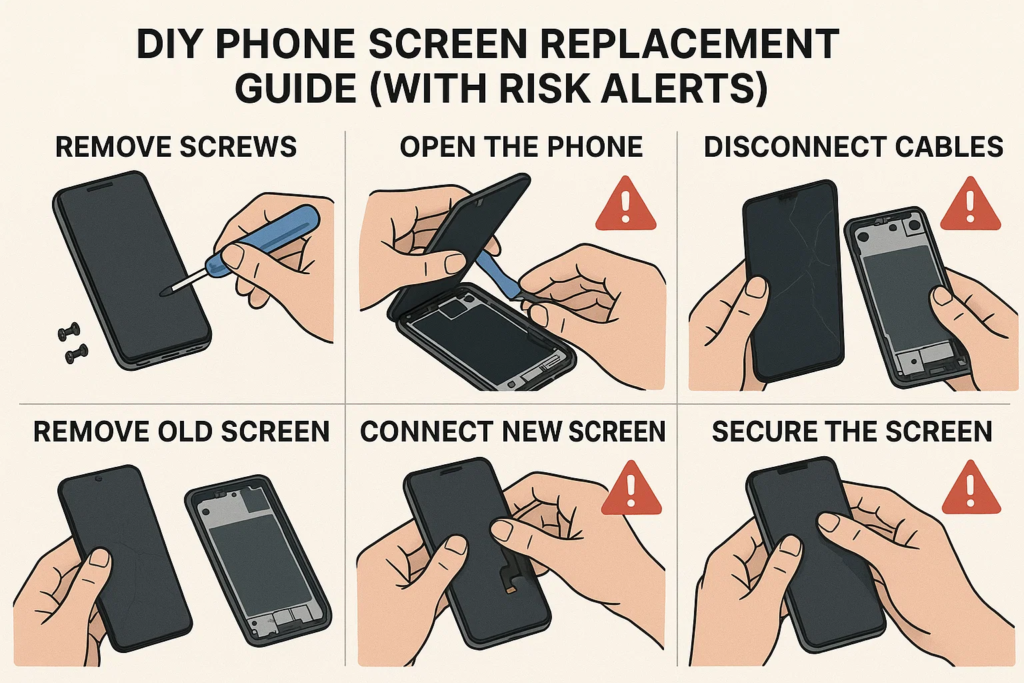
🔧Présentation
Soyons réalistes : casser l'écran de votre téléphone, c'est comme marcher sur LEGO pieds nus. Douloureux, inattendu, et cher. Mais bon, et si tu pouvais le remplacer toi-même? Bienvenue dans le guide ultime qui vous montre comment faire exactement cela, que vous ayez affaire à un iPhone ou à Android.. Nous vous guiderons à travers tout étape par étape, avec photos ou liens vidéo, et ajoutez des avertissements de risque pour vous assurer de ne pas transformer votre téléphone en presse-papier.
🔩 Outils essentiels & Matériels
Boîte à outils de base pour le remplacement de l'écran
Pour commencer, tu auras besoin:
- Un jeu de tournevis de précision (généralement avec Pentalobe, Phillips, Têtes à trois points)
- Ventouse
- Outils de levier en plastique
- Pince à épiler
- Outil d'éjection de carte SIM
- Alcool isopropylique (pour le nettoyage)
Équipement de sécurité recommandé
- Dragonne ESD (évite les dommages statiques)
- Tapis antistatique
- Lunettes de sécurité (les écrans peuvent se briser lors du retrait)
Comment se procurer des écrans de remplacement de qualité
Tous les écrans ne sont pas égaux. Évitez les produits très bon marché sur les marchés louches. Rechercher:
- Étiquettes OEM ou de type OEM
- Garantie (même 30 les jours valent mieux que rien)
- Compatibilité vérifiée avec votre modèle de téléphone
⚠️ Alertes de risques avant de commencer
Annuler votre garantie
Une fois l'appareil ouvert, dites adieu aux réclamations au titre de la garantie. Réfléchissez à deux fois si votre appareil est toujours sous garantie ou AppleCare.
Pièces à haut risque que vous pourriez casser
- Scanners d'empreintes digitales (Toucher l'identification, sous-affichage)
- Modules d'identification faciale (sur iPhone)
- Panneaux OLED (très fragile, surtout sur Samsung)
Dommages statiques et risques ESD
L'électricité statique peut faire frire les composants délicats. Utilisez une protection ESD et mettez-vous à la terre.
Quand vous ne devriez pas bricoler
- Si l'écran est fusionné avec la batterie
- Si vous manquez de mains fermes ou de patience
- Si le téléphone a des dégâts d'eau
🛠️ Processus de démontage étape par étape
Étape 1: Éteignez et déchargez la batterie
Maintenez l'alimentation et éteignez le téléphone. Attendez 2 à 3 minutes pour laisser les condensateurs se vider.
Étape 2: Retirez les vis et ouvrez l'appareil
iPhone
Utilisez un tournevis Pentalobe pour retirer les vis inférieures près du port de chargement. Appliquez une ventouse sur l'écran et faites délicatement levier avec un outil en plastique. N'insérez pas trop profondément!
Androïde
Dépend du modèle. Pour Samsung, chauffer les bords avec un pistolet thermique (70–80°C), utiliser une aspiration et une carte en plastique pour séparer le verre. Pour Xiaomi ou OPPO, les vis peuvent se trouver sous le panneau arrière.
Étape 3: Débranchez d'abord la batterie!
Ne sautez jamais ça. Débrancher d'abord la batterie évite de court-circuiter la carte mère.
Étape 4: Étiqueter et déconnecter les câbles flexibles
Utilisez une pince à épiler ou un spudger pour détacher soigneusement les nappes reliant l'écran., caméra, ou capteurs.
Étape 5: Retirez soigneusement l'écran cassé
Une fois tous les câbles débranchés, soulever l'écran. Soyez doux. Certains appareils sont dotés d'un adhésif que vous devrez ramollir à nouveau avec de la chaleur..
📲 Installation du nouvel écran
Étape 6: Nettoyer le boîtier et réappliquer l'adhésif
Grattez les restes de colle. Utilisez de l'alcool et un chiffon non pelucheux. Appliquer de nouvelles bandes adhésives ou de la colle.
Étape 7: Connectez les câbles flexibles à la carte logique
Reconnecter l'affichage, numériseur, caméra frontale, etc.. Soyez ferme mais prudent.
Étape 8: Rebrancher la batterie (Dernière étape!)
Une fois que tout est en place, rebranchez la batterie et fixez-la.
Étape 9: Remettez les vis et scellez l'appareil
Remplacer le panneau arrière ou l'écran, appliquer une pression uniforme, et revissez tout ça.
🧪 Tests avant l'assemblage final
Avant de tout sceller définitivement:
- Réactivité tactile
- Luminosité & couleurs d'affichage
- Pixels morts
- Devant & fonction caméra arrière
- Face ID ou lecteur d’empreintes digitales
Si quelque chose ne va pas, rouvrir et vérifier les connecteurs.
🚫 Erreurs courantes à éviter
Oublier de débrancher la batterie
C'est le #1 cause de circuits de rétroéclairage grillés ou de cartes logiques endommagées.
Câbles pincés ou connecteurs mal alignés
Les câbles flexibles sont comme des veines : si vous les pincez ou les tordez, ils peuvent se déchirer intérieurement.
Vis trop serrées
Cela peut fissurer le verre à cause de la pression interne. Bien ajusté, c'est suffisant.
🔍 Notes spéciales par marque d'appareil
iPhone X et versions ultérieures: Avertissement d'identification faciale
Les composants Face ID sont sensibles. Les endommager = perte permanente de Face ID. Vous ne pouvez pas simplement les remplacer : le système Apple les associe à la carte mère..
Écrans Samsung Edge: Fragilité OLED
Ces écrans flexibles sont super délicats. Appliquer trop de chaleur ou de pression peut les abîmer avant même d'avoir terminé..
Xiaomi & Oppo: Intégration de la batterie et de l'écran
Sur certains modèles, l'écran est collé directement sur la batterie. Vous risquez de crever la batterie si vous allez trop profondément.
🎥 Démo vidéo et guide visuel
Chaînes YouTube recommandées
- JerryRigTout
- iFixit
- Institut de réparation mobile
- Witrigs
Où trouver des PDF démontés
- iFixit.com
- Witrigs
- Manuels d'entretien du fabricant (si public)
👨🔧 Devriez-vous plutôt embaucher un professionnel?
Comparaison des coûts: Bricolage vs boutique
- BRICOLAGE: $20–80$ pour les pièces
- Boutique: $50–150$+ selon le modèle
Le bricolage permet d'économiser de l'argent, mais seulement s'il est bien fait du premier coup.
Quand un technicien de réparation sauve la situation
- Si votre téléphone est votre seule bouée de sauvetage
- Si le travail implique la soudure de la carte mère
- Si vous remplacez la vitre avant et arrière
🧠 Réflexions finales
Changer l'écran de votre téléphone peut être très satisfaisant, comme réparer votre propre vélo pour la première fois. Mais il est aussi facile de se tromper si vous n’êtes pas préparé. Si tu fais attention, utiliser les bons outils, et suivez des guides comme celui-ci, vous pouvez économiser de l'argent et améliorer votre jeu de réparation.
Mais bon, si vous n'êtes pas sûr ou si votre téléphone est un modèle phare, c'est tout à fait normal de laisser les pros s'en occuper.
❓ FAQ
1. Puis-je remplacer un écran sans aucun outil?
Non recommandé. Vous risqueriez d’endommager des composants ou de vous blesser.
2. Combien de temps faut-il pour remplacer un écran de téléphone?
Généralement 30 à 90 minutes, selon votre expérience et votre modèle.
3. Mon téléphone sera-t-il toujours étanche après le remplacement de l'écran?
Non. Une fois ouvert, la résistance à l’eau est compromise à moins qu’elle ne soit refermée par un professionnel.
4. Comment savoir si mon écran de remplacement est défectueux?
Vérifier le scintillement, pixels morts, problèmes de couleur, ou non-réactivité avant l'assemblage final.
5. Puis-je utiliser un écran usagé d'un autre téléphone?
Seulement s'il s'agit du modèle exact et entièrement fonctionnel. Testez-le avant l'installation.