🔧 Introduktion
Lad os se det i øjnene – at knække din telefonskærm føles som at træde på LEGO med bare fødder. Smertefuld, uventet, og dyrt. Men hey, hvad nu hvis du selv kunne erstatte det? Velkommen til den ultimative guide, der viser dig, hvordan du gør præcis det - uanset om du har at gøre med en iPhone eller Android. Vi guider dig gennem alt trin for trin, med billeder eller videolinks, og smid risikoadvarsler ind for at sikre, at du ikke forvandler din telefon til en papirvægt.
🔩 Vigtige værktøjer & Materialer
Grundlæggende værktøjssæt til udskiftning af skærm
For at komme i gang, du skal bruge:
- Et præcisionsskruetrækkersæt (normalt med Pentalobe, Phillips, Tri-point hoveder)
- Sugekop
- Nysende værktøj i plast
- Pincet
- Udstøderværktøj til SIM-kort
- Isopropylalkohol (til rengøring)
Anbefalet sikkerhedsudstyr
- ESD håndledsrem (forhindrer statisk skade)
- Antistatisk måtte
- Sikkerhedsbriller (skærme kan splintres, mens de fjernes)
Sådan hentes skærmbilleder til erstatning af kvalitet
Ikke alle skærme er lavet lige. Undgå superbillige på lyssky markedspladser. Se efter:
- OEM eller OEM-lignende etiketter
- Garanti (endog 30 dage er bedre end ingen)
- Bekræftet kompatibilitet med din telefonmodel
⚠️ Risikoadvarsler, før du starter
Ophævelse af din garanti
Når du åbner enheden, sige farvel til garantikrav. Tænk to gange, hvis din enhed stadig er under garanti eller AppleCare.
Højrisikodele, du muligvis går i stykker
- Fingeraftryksscannere (Tryk på ID, under-display)
- Face ID moduler (på iPhones)
- OLED paneler (meget skrøbelig, især på Samsung)
Statisk skade og ESD-risici
Statisk elektricitet kan stege sarte komponenter. Brug ESD-beskyttelse og jord dig selv.
Når du ikke bør gøre DIY
- Hvis skærmen er smeltet sammen med batteriet
- Hvis du mangler faste hænder eller tålmodighed
- Hvis telefonen har vandskade
🛠️ Trin-for-trin adskillelsesproces
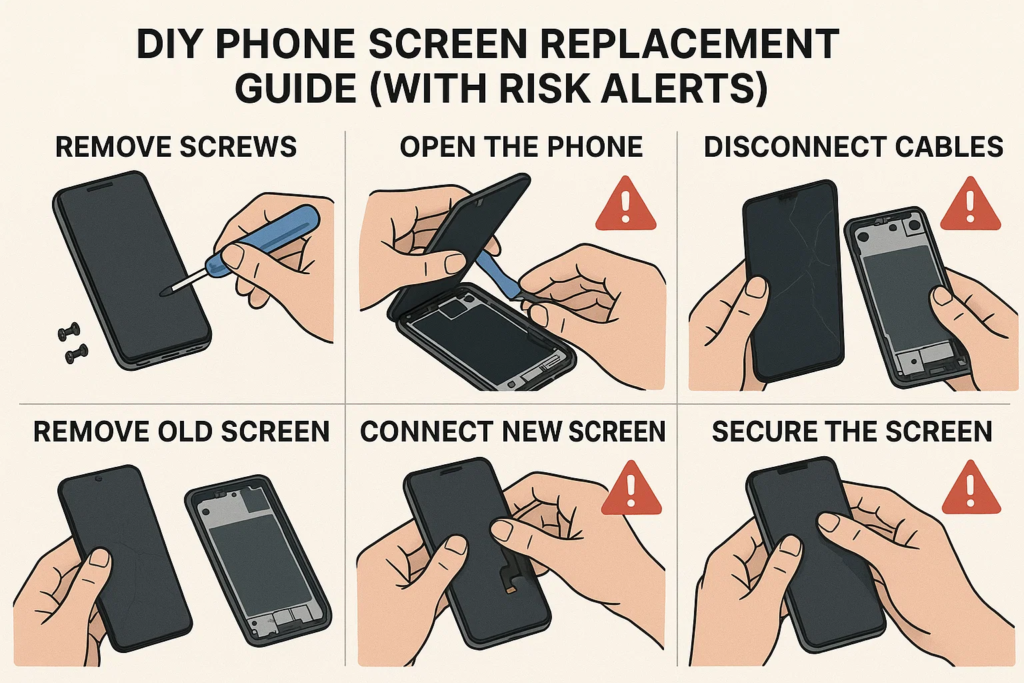
Trin 1: Sluk og aflad batteriet
Hold strømmen nede, og sluk telefonen. Vent 2-3 minutter for at lade kondensatorerne dræne.
Trin 2: Fjern skruerne og åbn enheden
iPhone
Brug en Pentalobe-skruetrækker til at fjerne bundskruerne nær opladningsporten. Sæt en sugekop på skærmen og lirk forsigtigt med et plastikværktøj. Indsæt ikke for dybt!
Android
Afhænger af model. Til Samsung, opvarm kanterne med en varmepistol (70–80°C), brug sug og et plastikkort til at adskille glasset. Til Xiaomi eller OPPO, skruer kan være under bagpanelet.
Trin 3: Afbryd først batteriet!
Spring aldrig over dette. Afbrydelse af batteriet først forhindrer kortslutning af logikkortet.
Trin 4: Mærk og afbryd flexkabler
Brug en pincet eller en spudger til forsigtigt at afmontere flexkabler, der forbinder skærmen, kamera, eller sensorer.
Trin 5: Fjern den ødelagte skærm forsigtigt
Når alle kabler er slukket, løft af skærmen. Vær blid. Nogle enheder har klæbemiddel, du skal blødgøre med varme igen.
📲 Installation af den nye skærm
Trin 6: Rengør huset og påfør klæbemiddel igen
Skrab rester af lim af. Brug alkohol og fnugfri klud. Påfør nye klæbestrimler eller lim.
Trin 7: Tilslut Flex-kabler til Logic Board
Tilslut skærmen igen, digitalisering, frontkamera, etc. Vær fast, men forsigtig.
Trin 8: Tilslut batteriet igen (Sidste trin!)
Når alt er inde, Tilslut batteriet igen og fastgør det.
Trin 9: Sæt skruerne på igen, og forsegl enheden
Udskift bagpanelet eller skærmen, påfør jævnt tryk, og skru det hele på igen.
🧪 Test før den endelige samling
Før du forsegler alt permanent:
- Berøringsfølsomhed
- Lysstyrke & vise farver
- Døde pixels
- Front & bagkamera funktion
- Face ID eller fingeraftrykslæser
Hvis noget er slukket, genåbn og kontroller stikkene.
🚫 Almindelige fejl, der skal undgås
Glemte at frakoble batteriet
Dette er #1 årsag til sprængte baggrundsbelysningskredsløb eller beskadigede logikkort.
Klemning af kabler eller forkert justering af stik
Flex-kabler er som årer - hvis du klemmer eller vrider dem, de kan rives indvendigt.
Overspændingsskruer
Dette kan knække glasset fra internt tryk. Snug er nok.
🔍 Særlige bemærkninger efter enhedsmærke
iPhone X og nyere: Face ID Advarsel
Face ID-komponenter er følsomme. Beskadigelse af dem = permanent tab af Face ID. Du kan ikke bare erstatte dem - Apples system parrer dem med logikkortet.
Samsung Edge-skærme: OLED skrøbelighed
Disse bøjelige skærme er super sarte. Hvis du anvender for meget varme eller tryk, kan det ødelægge dem, før du overhovedet er færdig.
Xiaomi & Oppo: Batteri og skærmintegration
På nogle modeller, skærmen klæbes direkte over batteriet. Du risikerer at punktere batteriet, hvis du går for dybt.
🎥 Videodemo og visuel guide
Anbefalede YouTube-kanaler
- JerryRigAlt
- iFixit
- Mobilreparationsinstitut
- Witrigs
Hvor finder man Teardown PDF'er
- iFixit.com
- Witrigs
- Fabrikantens servicemanualer (hvis offentlige)
👨🔧 Skal du hyre en professionel i stedet?
Omkostningssammenligning: DIY vs Shop
- DIY: $20-$80 for dele
- Butik: $50–$150+ afhængig af model
DIY sparer penge - men kun hvis det gøres rigtigt første gang.
Når en reparationsteknik redder dagen
- Hvis din telefon er din eneste livline
- Hvis jobbet involverer bundkortlodning
- Hvis du udskifter både for- og bagglas
🧠 Sidste tanker
At udskifte din telefonskærm kan være super tilfredsstillende - som at reparere din egen cykel for første gang. Men det er også nemt at rode, hvis du ikke er forberedt. Hvis du er forsigtig, bruge de rigtige værktøjer, og følg guider som denne, du kan spare penge og forbedre dit reparationsspil i niveau.
Men hey – hvis du er usikker, eller din telefon er en flagskibsmodel, det er helt i orden at lade de professionelle klare det.
❓ Ofte stillede spørgsmål
1. Kan jeg udskifte en skærm uden værktøj?
Ikke anbefalet. Du risikerer at beskadige komponenter eller skade dig selv.
2. Hvor lang tid tager det at udskifte en telefonskærm?
Typisk 30-90 minutter, afhængig af din erfaring og model.
3. Vil min telefon stadig være vandtæt efter udskiftning af skærm?
Ingen. En gang åbnet, vandmodstanden er kompromitteret, medmindre den genforsegles professionelt.
4. Hvordan ved jeg, om min erstatningsskærm er defekt?
Tjek for flimren, døde pixels, farveproblemer, eller manglende reaktion før den endelige samling.
5. Kan jeg bruge en brugt skærm fra en anden telefon?
Kun hvis det er den nøjagtige model og fuldt funktionsdygtig. Test det før installation.