Wstęp
Przy zakupie mobilnych ekranów LCD, Nie tylko kupujesz kawałek szkła z pikselami. Inwestujesz w produkt, którego warstwa dotykowa bezpośrednio wpływa na doświadczenie użytkownika. Wyobraź sobie wymianę ekranu, tylko po to, by Twój klient narzekał, że przesuwanie palcem przypomina przeciąganie palcem po syropie. Oto dlaczego testowanie jakości dotyku przed zakupem jest istotne.
Zrozumienie warstwy dotykowej
Warstwa dotykowa to niewidzialny bohater siedzący nad wyświetlaczem, wykrywając każde dotknięcie, trzepnąć, i uszczypnij, co robisz. We współczesnych smartfonach, najczęściej używany pojemnościowa technologia dotykowa-szybko, czuły, i dokładne. Wersje niskiej jakości, Jednakże, może opóźniać, błędnie interpretują gesty, lub mają martwe strefy.
Typowe problemy w warstwach o słabym dotyku obejmują:
- Opóźnienie dotyku: Działania rejestrują sekundy z opóźnieniem.
- Martwe punkty: Niektóre obszary nigdy nie reagują.
- Dotykanie duchów: Ekran rejestruje dotknięcia, których nie wykonałeś.
Wiedza o tym pomoże Ci wykryć problemy na wczesnym etapie procesu zakupowego.
Przygotowanie do testu dotykowego
Przed przystąpieniem do testów, zebrać:
- Mobilny ekran LCD
- Smartfon lub urządzenie testujące
- A aplikacja do rysowania (każda prosta aplikacja do szkicowania będzie działać)
- A aplikacja do testowania wielodotyku (bezpłatnie w sklepach z aplikacjami)
Wskazówki dotyczące ochrony środowiska:
- Przetestuj w pomieszczeniu bez odblasków.
- Unikaj wilgoci i zakurzonego środowiska, które może mieć wpływ na wyniki.
- Z wyświetlaczami LCD należy obchodzić się ostrożnie – bez zginania i zbyt mocnego naciskania.
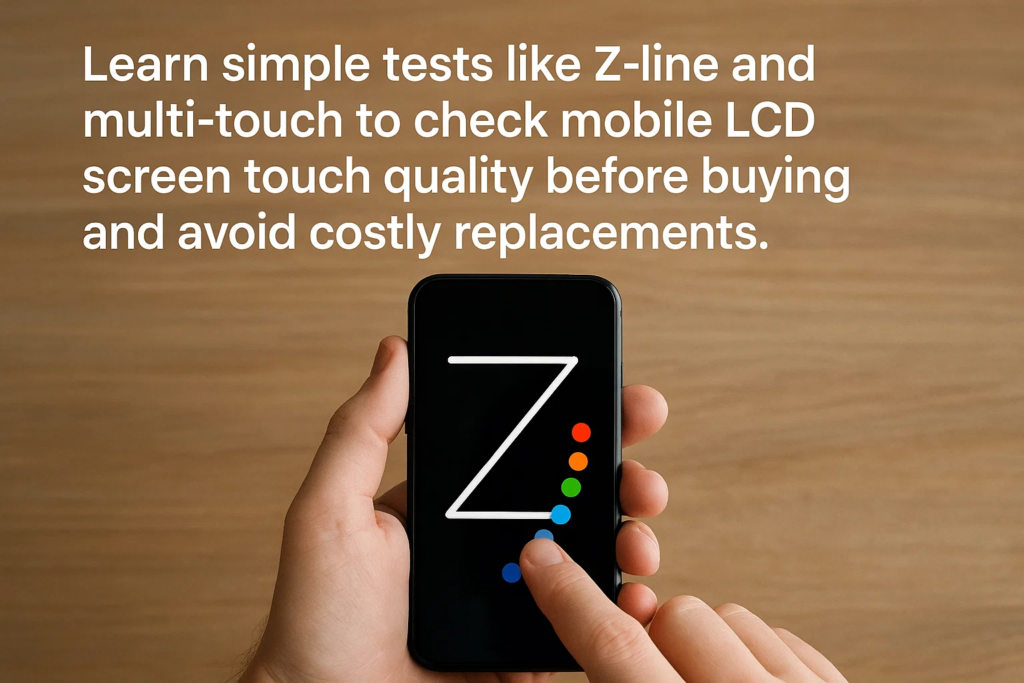
Test linii Z aplikacji do rysowania
To jest twoje pierwszy test, który trzeba wykonać.
- Otwórz podstawową aplikację do rysowania.
- Dla lepszej widoczności wybierz cienki pędzelek.
- Rysuj ciągły Linie w kształcie litery Z które zajmują cały ekran.
- Uważaj na:
- Przerwy (wskazując błąd wykrywania dotyku)
- Pomija (dotknięcie przeskakuje w inne miejsce)
- Linie duchów (pojawiają się fantomowe dotknięcia)
Jeśli Twoje linie są wyraźne i kompletne, bez przerw, Twoja warstwa dotykowa mija pierwszą przeszkodę.
Test wielodotykowy dziesięcioma palcami
Po co testować dziesięcioma palcami? Ponieważ użycie w świecie rzeczywistym wymaga gesty wielodotykowe— uszczypnij, aby powiększyć, przesunięcia wieloma palcami, i sterowanie grami.
- Zainstaluj aplikację testową obsługującą technologię wielodotykową.
- Umieść jednocześnie wszystkie dziesięć palców na ekranie.
- Upewnij się, że aplikacja wykrywa każdy punkt dotyku.
- Jeśli którykolwiek palec nie zostanie zarejestrowany, panel może mieć ograniczona funkcja wielodotyku—czerwona flaga dotycząca gier lub korzystania z zaawansowanych aplikacji.
Test czułości krawędzi
Krawędzie są znane z tego, że zawodzą jako pierwsze, szczególnie w budżetowych ekranach.
- Stukaj wielokrotnie wzdłuż samych krawędzi ekranu.
- Zauważ jakikolwiek opóźnione lub brakujące odpowiedzi.
- Słabe wykrywanie krawędzi wpływa na pisanie, przewijanie, i gry.
Płynny test oporu
Wreszcie, sprawdź, jak dobrze ekran radzi sobie z przeciąganiem:
- Przytrzymaj i przeciągnij ikonę aplikacji lub kształt po ekranie.
- Sprawdź jąka się, skoki, lub opór.
- Płynny i niezakłócony ruch sprawia, że warstwa dotykowa jest dobrze skalibrowana.
Interpretacja wyników
- Przejdź wszystkie testy? Prawdopodobnie wysokiej jakości warstwa dotykowa.
- Niepowodzenie w jednym lub kilku? Nawet drobne awarie mogą prowadzić do dużego niezadowolenia użytkownika.
- Zawsze porównuj ze znanym Ekran referencyjny OEM do benchmarkingu.
Typowe problemy z ekranem dotykowym & Powoduje
| Wydanie | Prawdopodobna przyczyna |
|---|---|
| Opóźnienie dotyku | Niskojakościowy dotykowy układ scalony lub oprogramowanie układowe |
| Dotykanie duchów | Słabe ekranowanie, ingerencja |
| Martwe punkty | Wadliwe siatki czujników dotykowych |
| Awaria krawędzi | Niepełne pokrycie matrycy dotykowej |
Najlepsze praktyki w zakresie zakupów
- Test zanim płacenie za przesyłki masowe.
- Nagraj dowód wideo uszkodzonych jednostek na potrzeby roszczeń dostawcy.
- Zachowaj próbkę z każdej partii do wykorzystania w przyszłości.
Unikanie fałszywych ekranów
- Uważaj na fałszywe etykiety OEM— sprawdź czcionkę, jakość druku, i wyrównanie.
- Oryginalne opakowanie jest solidne, z odpowiednią amortyzacją.
- Współpracuj tylko ze zweryfikowanymi dostawcami z doświadczeniem.
Utrzymanie wydajności dotyku
- Ostrożnie instaluj ekrany – unikaj nadmiernego dokręcania śrub.
- Użyj cienkiego, wysokiej jakości ochraniacze ekranu.
- Trzymać z dala od wilgoci i ekstremalnych temperatur.
Wniosek
Testowanie warstw dotykowych mobilnych wyświetlaczy LCD nie jest opcjonalne – jest niezbędne. Korzystanie z aplikacja do rysowania Test linii Z, A test wielodotykowy dziesięciu palców, stukanie krawędzi, i a płynny test oporu gwarantuje wczesne wykrycie problemów. Dzięki temu unikniesz kosztownych zwrotów, wściekli klienci, i zmarnowany czas.
FAQ
1. Czy mogę przetestować jakość dotyku bez specjalistycznej aplikacji??
Tak, ale wyspecjalizowane aplikacje sprawiają, że wykrywanie jest łatwiejsze i dokładniejsze.
2. Skąd mam wiedzieć, czy ekran jest jakości OEM?
Porównaj reakcję na dotyk, gładkość, i opakowanie z oryginalnym ekranem producenta.
3. Dlaczego krawędzie zawodzą szybciej niż środek?
Okablowanie siatki dotykowej jest bardziej podatne na uszkodzenia wzdłuż krawędzi, szczególnie w przypadku konstrukcji niskiej jakości.
4. Czy test linii Z wystarczy, aby potwierdzić jakość dotyku??
NIE. Połącz to z multi-touchem, krawędź, i przeciągnij testy, aby uzyskać pełną ocenę.
5. Czy powinienem testować każdą jednostkę, czy tylko losowe próbki??
Dla zamówień o dużej wartości, przetestuj każdą jednostkę. Dla masowych, testowanie losowe jest akceptowalne, ale bardziej ryzykowne.