Introducere
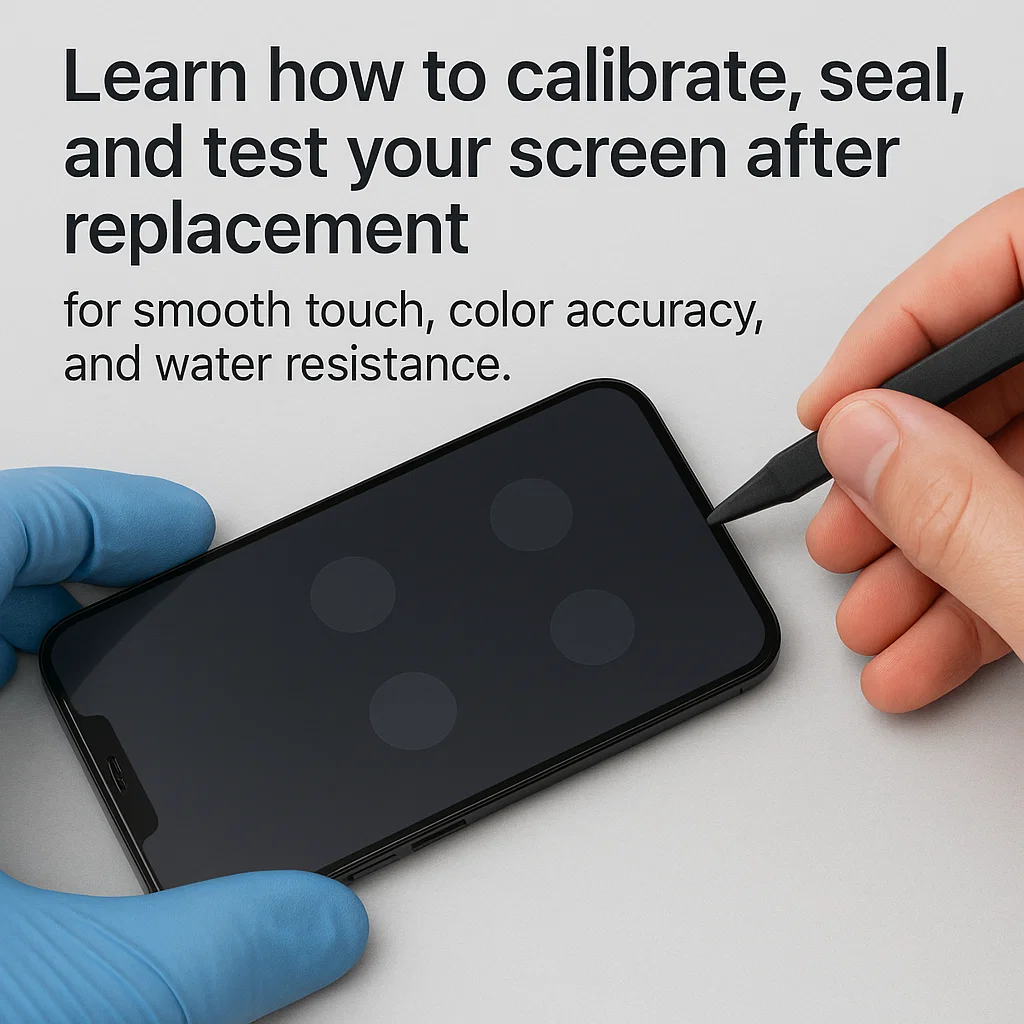
Aşa, Tocmai vi s-a schimbat ecranul telefonului - minunat! Dar stai, încă nu s-a terminat. Gândește-te la asta ca și cum ai cumpăra o anvelopă nouă pe mașina ta. Nu l-ai pălmui și ai porni la drum fără a-l alinia și a-l testa, corect? Același lucru este valabil și pentru ecranul dvs. Dacă doriți să funcționeze la fel ca originalul (sau mai bine!), sunt câteva lucruri cheie necesitate faceți post-înlocuire.
Să vă prezentăm totul pas cu pas — de la calibrare la impermeabilizare și diagnosticare completă — pentru a face telefonul să se simtă nou-nouț din nou.
Ce trebuie să faceți imediat după înlocuirea ecranului
Înainte de a te scufunda în teste avansate, începe cu o simplă inspecție vizuală:
- Căutați goluri sau nealiniere. Ecranul trebuie să fie confortabil și la același nivel cu cadrul.
- Verificați dacă există probleme de pixeli sau zone moarte.
- Asigurați-vă că nu există praf sau reziduuri de lipici prins sub pahar.
Aceste lucruri mici pot deveni dureri de cap uriașe mai târziu.
Ghid de calibrare a ecranului pas cu pas
De ce să calibrați un nou ecran?
Când ecranul este înlocuit, alinierea senzorului tactil poate fi ușor dezactivată. Asta duce la probleme precum:
- Răspuns la atingere inexact
- Ghost atinge
- Atingeri neînregistrate
Metode de calibrare manuală
Android:
- Du-te la
Settings > Display > Touch Sensitivity(dacă este disponibil). - Utilizare Calibrarea ecranului tactil aplicații ca “Reparație ecran tactil” sau “Tester MultiTouch”.
iPhone:
- iOS nu permite calibrarea manuală, dar o resetare completă uneori realinează logica de intrare.
Când să căutați o calibrare profesională?
Daca observi:
- Recunoaștere la atingere lentă
- Tastare agitată
- Apăsări fantomă
Lăsați un tehnician să recalibreze folosind instrumente speciale sau software de diagnosticare.
Testarea receptivității ecranului tactil
Test de atingere de bază
- Glisați peste toate marginile și colțurile
- Ciupiți și măriți imaginile
- Desenați linii într-o aplicație de desen pentru a testa continuitatea
Testare multitouch
Utilizați aplicații precum „MultiTouch Tester” pentru a vedea câte degete detectează telefonul dvs. simultan și dacă vreo zonă întârzie.
Verificare culoare și luminozitate afișaj
Precizia culorii contează
Este albul cu adevărat alb? Sunt roșii excesiv de saturate? Comparați ecranul unul lângă altul cu alt dispozitiv.
Reglarea setărilor de afișare
Pe Android:
- Du-te la
Settings > Display > Color Mode
Pe iOS:
Settings > Accessibility > Display & Text Size
Aplicații precum „Calibrator de culori” (Android) vă permite să reglați RGB manual.
Cască, Microfon & Diagnosticarea senzorilor
Testul difuzorului pentru căști
Efectuați un apel telefonic sau redați sunet pentru a confirma că receptorul funcționează corect.
Lumină ambientală & Senzori de proximitate
Acoperiți partea de sus a telefonului în timpul unui apel. Ecranul ar trebui să se închidă. Dacă nu, senzorul dvs. de proximitate ar putea fi aliniat greșit.
Testarea giroscopului și accelerometrului
- Deschideți camera și înclinați telefonul
- Joacă jocuri bazate pe mișcare
- Utilizați instrumente precum „Sensor Box” sau „CPU-Z” pentru teste avansate
Manipularea garniturilor impermeabile după înlocuirea ecranului
Ce este adeziv/etanșant rezistent la apă?
Acesta este adezivul negru care înconjoară ecranul dvs. și ține umezeala să intre. Odată ce telefonul este deschis, își pierde rezistența la apă dacă nu este reaplicat.
Reaplicarea adezivului impermeabil
- Curățați bine cadrul telefonului
- Aplicați adeziv impermeabil de calitate OEM (ca T-7000 sau B-7000)
- Lasă-l să se vindece cel puţin 24 ore
Poate telefonul dvs. să fie încă rezistent la apă?
Pot fi. Dar nu ca înainte. Sigiliul original din fabrică este aproape imposibil de reprodus 100%. Aveți grijă pe ploaie sau lângă piscine.
Lista de verificare finală a testării funcționale
Treceți prin această listă ca un profesionist:
- ✅ Atingeți (fiecare centimetru!)
- ✅ Afișaj (culorile, luminozitate)
- ✅ Difuzor & microfon
- ✅ Față & camera spate
- ✅ Senzori de proximitate și lumină
- ✅ Face ID/Amprentă
- ✅ Butoane de volum și de pornire
Sfaturi de îngrijire pe termen lung pentru ecranele înlocuite
Utilizați un protector de ecran
Sticla călită nu este exagerată - este a salvator pentru noul dvs. ecran.
Evitați temperaturile extreme
Căldura slăbește adezivul. Frigul face ecranul fragil. Păstrați-vă telefonul într-un interval confortabil.
Manipulați cu grijă
Nu vă aruncați telefonul în genți sau buzunare cu chei. Utilizarea blândă înseamnă viață lungă.
Probleme și remedieri obișnuite după înlocuire
- Atingeri de fantomă – Încercați o recalibrare sau verificați dacă există probleme de împământare.
- Decolorarea afișajului – Poate fi un ecran defect; contactați furnizorul dvs. de reparații.
- Intrarea apei – Resigilați cu adeziv impermeabil sau vizitați un tehnician.
- Margini libere ale ecranului – Reaplicați adeziv și clemă pt 24 ore.
Când să vizitați din nou un tehnician de reparații
Nu așteptați dezastrul. Dacă:
- Vedeți aburire internă
- Ecranul tău se ridică la colțuri
- Problemele de atingere persistă
… întoarce-te la tehnicianul tău. Rapid.
Concluzie
Înlocuirea ecranului telefonului este doar jumătate din treabă - este la fel de important să vă asigurați că funcționează perfect după aceea. Calibrare, etanșare impermeabilă, și testarea amănunțită sunt nenegociabile dacă doriți ca dispozitivul dvs. să se simtă cu adevărat „ca nou”.
Luați puțin timp în plus după reparație, iar telefonul vă va răsplăti cu fluiditate, performanță fiabilă pentru anii următori.
Întrebări frecvente
1. Telefonul meu poate fi impermeabil după înlocuirea ecranului?
Un fel de. Cu adeziv impermeabil și etanșare adecvat, puteți recupera rezistența la apă, dar nu vă așteptați la protecție completă IP68.
2. Cum știu dacă ecranul meu este calibrat corect?
Încercați să desenați linii drepte sau să utilizați aplicații de testare multi-touch. Dacă liniile sunt săritoare sau decentrate, recalibra.
3. Ce adeziv este folosit pentru etanșarea impermeabilă?
Atelierele profesionale de reparații folosesc adesea T-7000 sau B-7000 adeziv negru pentru hidroizolarea ecranului.
4. Pot testa senzorii telefonului meu acasă?
Da! Utilizați aplicații precum Cutia cu senzori sau meniuri de diagnosticare încorporate (formați #0# este Samsung, de exemplu).
5. Trebuie să testez toate funcțiile după o schimbare a ecranului?
Absolut. O mică neglijență, cum ar fi un senzor de proximitate spart, vă poate distruge experiența zilnică a telefonului.