Introducere – De ce ecranul telefonului dvs. nu este întotdeauna „rupt”
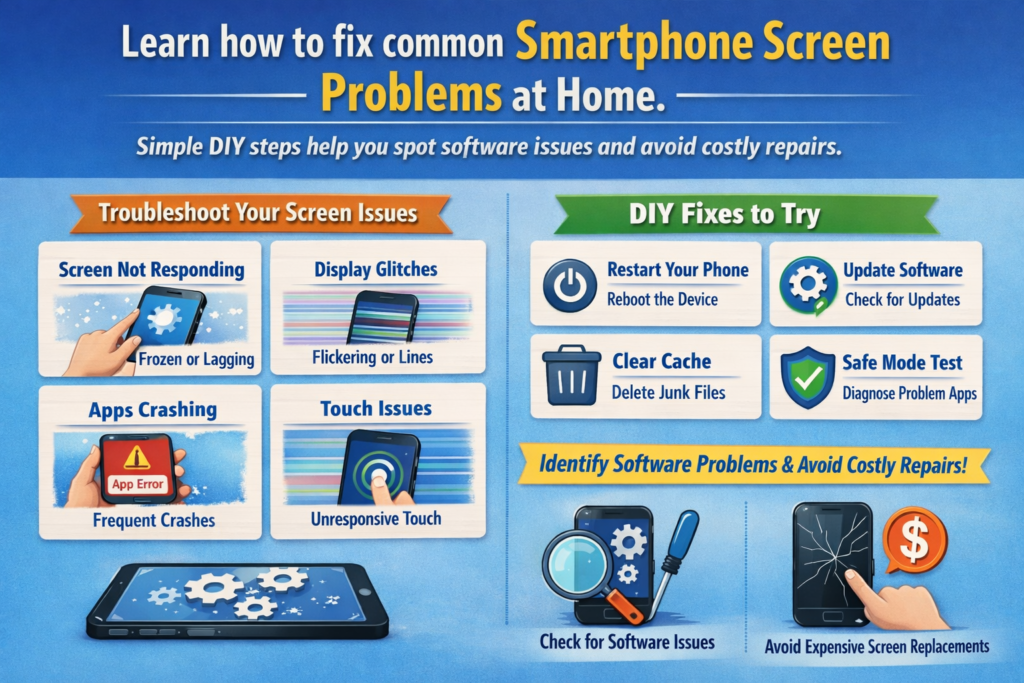
Să fim sinceri, când ecranul unui telefon începe să se comporte ciudat, majoritatea oamenilor trec direct în modul de panică. "Mare, o altă reparație costisitoare,” corect? Dar iată bomba adevărului: nu orice problemă de ecran înseamnă deteriorare hardware. De fapt, un număr mare de probleme de afișare sunt cauzate de erori software, setări prost configurate, sau șoferi învechiți.
Hardware vs. Probleme cu ecranul software
Deteriorarea hardware-ului vine de obicei cu semne evidente - fisuri, puncte negre, pixeli morți care nu se schimbă niciodată. Probleme de software, pe de altă parte, sunt mascate. Ele apar ca schimbări de culoare, răspunsuri la atingere întârziată, pâlpâind, sau strălucire care pare să aibă o minte proprie.
De ce depanarea DIY vă poate economisi bani
Gândește-te la telefonul tău ca la o mașină. Dacă radioul nu mai funcționează, nu schimbi motorul. În mod similar, multe probleme de ecran pot fi rezolvate în câteva minute—gratuit— cu pașii potriviți. Acest ghid este setul dvs. de instrumente la preț redus pentru a remedia problemele de ecran bazate pe software înainte de a vă preda portofelul unui atelier de reparații.
Înțelegerea problemelor software pentru ecranul smartphone-ului
Cum controlează software-ul comportamentul de afișare
Ecranul telefonului tău nu este doar sticlă și pixeli. În culise, sistemul de operare, drivere de afișare, și firmware-ul lucrează împreună pentru a controla luminozitatea, culorile, rata de reîmprospătare, și răspuns la atingere.
Rolul OS, Șoferii, și Calibrare
- OS gestionează setările pentru utilizator
- Șoferii comunica cu hardware-ul de afișare
- Profiluri de calibrare reglați fin culoarea și acuratețea atingerii
Când oricare dintre acestea merge prost, ecranul începe să se comporte prost, chiar dacă hardware-ul este perfect.
Probleme de distorsiune a culorii afișajului
Simptome comune ale problemelor de culoare
Ecranul tău arată gălbui?? Prea albastru? Ca și cum cineva a declanșat saturația 200%? Nu ești singur.
Tentă galbenă, Suprasaturare, și Culorile spălate
Aceste probleme sunt adesea cauzate de:
- Modul noapte sau filtre de lumină albastră
- Profiluri de culoare incorecte
- Erori software după actualizări
Remedieri pas cu pas pentru distorsiunea culorii
Ajustarea setărilor afișajului
Începe simplu:
- Dezactivați Lumină de noapte / Modul confort pentru ochi
- Comutați între Natural, Vioi, sau modurile de culoare standard
- Resetați setările de afișare la valorile implicite
Instrumente de calibrare a culorii
Unele telefoane includ instrumente de calibrare încorporate. Dacă nu, aplicațiile de calibrare de încredere pot ajuta la realiniarea valorilor RGB și gama - doar nu exagerați.
Luminozitatea automată nu funcționează corect
De ce eșuează luminozitatea automată
Luminozitatea automată se bazează pe senzorii de lumină ambientală. Când problemele software sau datele corupte interferează, nivelurile de luminozitate dau peste cap.
Alinierea greșită a senzorului și erori software
Uneori senzorul funcționează bine, dar sistemul a „învățat” date proaste în timp.
Cum să remediați problemele de luminozitate automată
Resetarea luminozității adaptive
- Opriți luminozitatea automată
- Reporniți telefonul
- Porniți-l din nou și antrenați-l din nou în diferite condiții de iluminare
Ștergerea memoriei cache a sistemului
O ștergere a memoriei cache a sistemului poate elimina erorile rămase după actualizări - nu implică pierderi de date.
Întârzierea ecranului tactil și atingerea fără răspuns
Ce cauzează întreruperile ecranului tactil
Răspunsul la atingere întârziat sau întrerupt este adesea legat de:
- Aplicații de fundal care adună resurse
- Suprapuneri precum recordere de ecran
- Conflicte software
Conflicte în aplicație și procese de fundal
Prea multe aplicații care rulează este ca prea mulți bucătari în bucătărie - nimic nu funcționează bine.
Remedierea sensibilității ecranului tactil
Testare în modul sigur
Porniți în modul sigur. Dacă ecranul tactil funcționează bine, felicitări - ați identificat un vinovat de software.
Calibrare sensibilitate la atingere
Multe telefoane permit recalibrarea tactilă sau o sensibilitate crescută, util mai ales după actualizările sistemului.
Intrări Ghost Touch și ecran aleatoriu
Ce este Ghost Touch?
Atingerea fantomă are loc atunci când ecranul înregistrează atingeri pe care nu le-ați făcut. Înfricoșător? Da. Permanent? De obicei nu.
Remedieri software înainte de panică
Actualizări de firmware
Producătorii corectează adesea problemele de atingere fantomă în tăcere prin actualizări. Fii mereu la curent.
Ajustări ale ratei de reîmprospătare a ecranului
Comutare între 60 Hz, 90Hz, sau 120Hz poate stabiliza uneori comportamentul de intrare tactilă.
Probleme cu pâlpâirea și clipirea ecranului
Când pâlpâirea nu este deteriorare hardware
Pâlpâirea la luminozitate scăzută este adesea legată de PWM controlat de software (Modularea lățimii pulsului).
Soluții pe care le puteți încerca acasă
Dezactivați suprapunerea hardware
Această opțiune de dezvoltator forțează GPU-ul să se ocupe de randare, reducerea pâlpâirii în unele cazuri.
Reglați setările PWM și luminozitate
Creșterea ușoară a luminozității sau dezactivarea caracteristicilor adaptive pot stabiliza afișajul.
Display Lag, Bâlbâi, și Frame Drops
Cum afectează software-ul netezimea ecranului
Ecranul dvs. poate fi capabil de performanțe fluide, dar blocajele software pot ruina experiența.
Pași de optimizare a performanței
Setări pentru rata de reîmprospătare
Setați telefonul la o rată de reîmprospătare ridicată fixă, dacă este disponibilă.
Scala de animație a sistemului
Reducerea dimensiunii animației face ca totul să se simtă mai rapid, cum ar fi să-ți dai telefonului o injecție de cafeină.
Înghețarea ecranului sau ecranul negru (Dar Telefonul Este Pornit)
Cauze comune ale erorilor de pe ecranul negru
Se blochează sistemul, actualizări eșuate, sau conflictele aplicațiilor pot îngheța afișajul în timp ce telefonul încă funcționează.
Remedieri DIY fără a deschide telefonul
Repornire forțată
Aceasta elimină blocările temporare ale sistemului - simplu, rapid, si eficient.
Instrumente de reparare a sistemului de operare
Unele mărci oferă utilități oficiale de reparații care reinstalează componentele sistemului fără pierderi de date.
Importanța actualizărilor de sistem și drivere
De ce șoferii învechiți sparg afișajele
Șoferii acționează ca traducători între software și hardware. Traducătorii vechi provoacă neînțelegeri – alias bug-uri.
Practici de actualizare sigure
- Folosiți numai actualizări oficiale
- Evitați software-ul beta pe dispozitivele zilnice
- Backup înainte de actualizări majore
Când aplicațiile terțe vă sparg ecranul
Identificarea aplicațiilor problematice
Lansatoare, filtre, dimmerele ecranului, iar amplificatorii de joc sunt factori obișnuiți.
Probleme cu permisiunea și suprapunerea aplicației
Dezactivați permisiunile „desenați peste alte aplicații” și testați din nou comportamentul ecranului.
Sfaturi preventive pentru a evita viitoarele probleme cu ecranul
Setări inteligente Obiceiuri
- Evitați setările de luminozitate extremă pe termen lung
- Limitați aplicațiile de fundal
- Utilizați teme și lansatoare oficiale
Lista de verificare pentru întreținerea software-ului
Gândește-te la asta ca și cum te-ai spălat pe dinți - plictisitor, dar necesar.
Când bricolajul se oprește – Cunoașterea pragului de reparație
Semne că aveți de fapt nevoie de reparații profesionale
Dacă problemele persistă după resetare, actualizări, și testarea modului sigur, repararea hardware-ului ar putea fi inevitabilă. Cel puțin acum, vei ști sigur.
Concluzie – Deveniți propriul dvs. doctor de ecran pentru smartphone
Ecranul smartphone-ului tău nu este atât de fragil sau misterios pe cât pare. Multe probleme sunt bazate pe software și complet rezolvabile cu puțină răbdare și know-how. Încercând mai întâi aceste soluții de bricolaj, puteți economisi bani, evitați reparațiile inutile, și extindeți durata de viață a telefonului dvs. Gândiți-vă la acest ghid ca la trusa dvs. de prim ajutor pentru problemele cu ecranul - întotdeauna acolo când aveți nevoie.
Întrebări frecvente
1. Poate software-ul să cauzeze cu adevărat probleme serioase de ecran?
Absolut. Multe probleme de afișare sunt controlate de software și reversibile.
2. Resetarea setărilor îmi va șterge datele?
Nu. Cele mai multe resetări ale afișajului și ale sistemului nu afectează fișierele personale.
3. Sunt sigure aplicațiile de calibrare de la terți?
Aplicațiile de încredere sunt în general sigure, dar verificați întotdeauna recenziile și permisiunile.
4. Cât de des ar trebui să-mi actualizez sistemul telefonic?
Regulat, dar evitați versiunile beta instabile pe dispozitivele principale.
5. Când ar trebui să opresc depanarea DIY?
Dacă modul sigur și resetarea din fabrică nu ajută, este probabil necesară repararea hardware-ului.