Wstęp
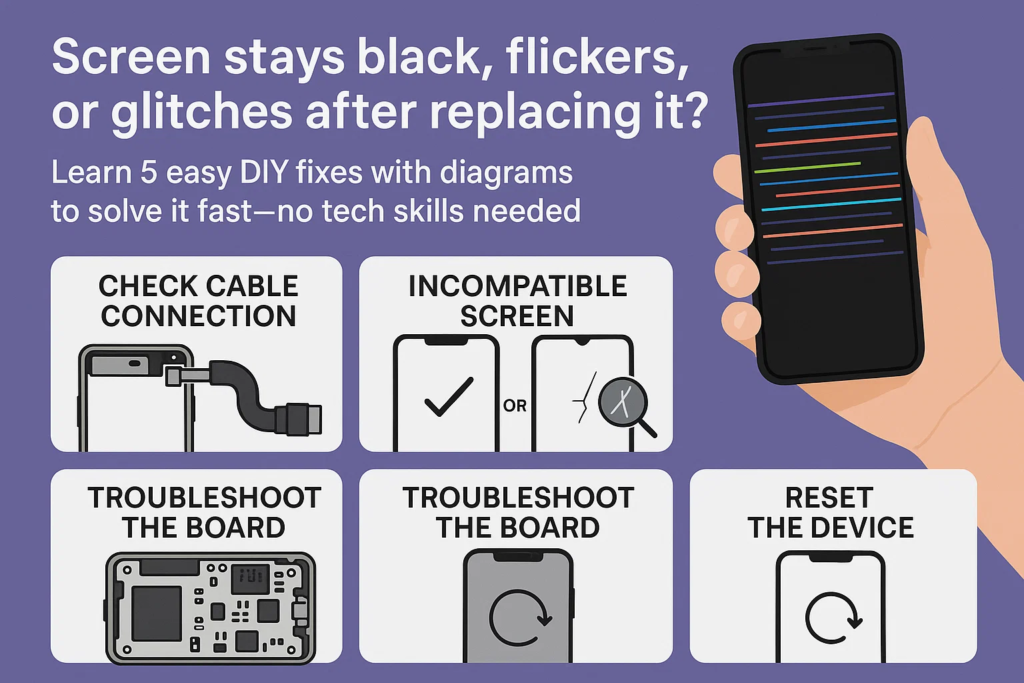
Właśnie wymieniłeś ekran telefonu, Mając nadzieję na szybką naprawę i płynną operację. Ale zamiast tego? Ekran pozostaje ciemny, migocze jak nawiedzony telewizor, lub tańczą po nim przypadkowe kolorowe linie. Brzmi znajomo?
Nie martw się – nie jesteś sam. Problemy z ekranem po wymianie są niezwykle częste, zwłaszcza w przypadku napraw typu „zrób to sam” lub usług naprawczych stron trzecich. Dobra wiadomość? Większość problemów można rozwiązać w domu, jeśli wiesz, czego szukać. Rozbijmy to wszystko.
Objawy, które możesz napotkać
Ekran w ogóle się nie świeci
Jeśli telefon włącza się, ale wyświetlacz pozostaje czarny, prawdopodobnie jest to problem z połączeniem lub kompatybilnością — niekoniecznie wadliwy ekran.
Migający lub skaczący ekran
Często jest to spowodowane niewłaściwą instalacją kabla elastycznego, błędy oprogramowania, lub uszkodzone układy scalone na nowym wyświetlaczu.
Zniekształcony lub kolorowy wyświetlacz (ekran usterki)
Widziałem dziwne pionowe linie, efekty tęczy, lub bloki pikseli? Zwykle oznacza to niezgodność ekranu lub uszkodzenie podczas instalacji.
. 5 Najczęstsze powody, dla których Twój nowy ekran nie działa prawidłowo
1. Luźny lub nieprawidłowo podłączony przewód elastyczny wyświetlacza
Oznaki luźnego połączenia
- Ekran staje się czarny po lekkim poruszeniu
- Wyświetlacz działa sporadycznie
- Pokazuje się tylko podświetlenie, ale bez obrazu
Wskazówki dotyczące samodzielnego naprawiania i ponownego podłączania
- Całkowicie wyłącz urządzenie
- Użyj plastikowej pęsety lub spudera, aby odłączyć i ponownie podłączyć przewód elastyczny
- Upewnij się, że złącze zatrzasnęło się na swoim miejscu
Schemat i orientacja kabla elastycznego
Notatka: Upewnij się, że złote styki są wyrównane ze złączem płytki, i nigdy nie wyginaj go do tyłu.
2. Niekompatybilny model ekranu
Dlaczego model ekranu ma znaczenie
Nie wszystkie ekrany – nawet w przypadku tego samego modelu telefonu – są sobie równe. OEM, OLED, i wersje LCD mogą różnić się układem pinów i wydajnością.
Jak sprawdzić kompatybilność ekranu
- Użyj numeru modelu (można znaleźć na tylnej okładce lub w ustawieniach)
- Sprawdź u sprzedawcy lub skorzystaj z narzędzi online do sprawdzania zgodności ekranów
- Nie zakładaj, że „wygląda tak samo” oznacza „działa tak samo”
3. Uszkodzenia związane z instalacją
Elektryczność statyczna i popękane układy scalone
Jeśli nie uziemiłeś się przed pracą, niewielki wstrząs statyczny może zniszczyć elementy ekranu.
Nadmiernie zginające się kable elastyczne
Kable te są delikatne. O jeden zwrot za dużo, i to koniec gry w transmisji sygnału.
Wskazówki dotyczące bezpieczeństwa zrób to sam
- Zawsze używaj opasek antystatycznych
- Unikaj zbyt mocnego naciskania podczas instalacji
- Nigdy nie dotykaj złączy gołymi palcami
4. Problemy z płytą główną
Spalone elementy z poprzednich uszkodzeń
Twój stary ekran mógł spowodować zwarcie na płycie głównej, który teraz nie rozpoznaje nowego ekranu.
Wadliwe chipy wykrywające ekran
Płyta główna zawiera chipy obsługujące komunikację ekranową. Jeśli są smażone, żaden ekran nie będzie działać.
Kiedy szukać profesjonalnej pomocy
Jeśli próbowałeś wszystkiego, a ekran nadal nie działa – czas zadzwonić do warsztatu dysponującego narzędziami do mikrolutowania.
5. Usterki oprogramowania lub oprogramowania układowego
Konieczność wymuszonego ponownego uruchomienia lub aktualizacji
Czasami, system telefonu „utknął” na starym profilu ekranu.
Porady dotyczące przywracania lub przywracania ustawień fabrycznych
- Spróbuj przytrzymać Moc + Zmniejsz głośność (dla Androida) lub Moc + Zwiększ głośność (dla iPhone'a) aby wymusić ponowne uruchomienie
- Jako ostateczność, wykonaj pełny reset po utworzeniu kopii zapasowej danych
Jak prawidłowo zainstalować elastyczny kabel wyświetlacza
Wizualny krok po kroku ze schematem
- Najpierw odłącz akumulator
- Oczyść złącza wacikiem nasączonym alkoholem
- Dopasuj elastyczne kołki do gniazda
- Wkładaj prosto – nigdy pod kątem
- Podłącz ponownie akumulator po zabezpieczeniu kabla
Czyszczenie złączy przed ponownym podłączeniem
Używać 99% alkoholu izopropylowego i niestrzępiącej się szmatki lub wacika. Brudne złącza mogą blokować sygnały.
Sprawdzanie zakrętów, spękanie, lub słaby lut
Linie elastyczne powinny być proste i płaskie. W razie potrzeby użyj powiększenia.
Kompatybilność ekranu: Nie wszystkie wyświetlacze są równe
Ekrany OEM vs ekrany z rynku wtórnego
OEM = oryginał, najwyższa jakość
Rynek wtórny = znacznie różni się jakością, czasami nie obsługuje pełnych funkcji (jak Face ID czy kontrola jasności)
Typy ekranów specyficzne dla modelu
Niektóre modele mają różne specyfikacje ekranu w zależności od regionu (np., iPhone 11 Warianty Japonia vs UE)
Narzędzia umożliwiające identyfikację prawidłowego modelu
- iPhone: Przejdź do Ustawień > Ogólny > O
- Android: Cyferblat
*#*#4636#*#*lub użyj aplikacji takich jak CPU-Z
Uszkodzenie podczas instalacji: Wskazówki dotyczące zapobiegania
Typowe błędy, których należy unikać
- Zbyt ostre zginanie kabli
- Zapominając najpierw odłączyć akumulator
- Używanie metalowych narzędzi
Jak uziemić się, aby uniknąć ładunków elektrostatycznych
Użyj maty antystatycznej lub opaski przymocowanej do metalowej powierzchni
Używanie plastikowych narzędzi i rękawiczek
Plastik = nieprzewodzący, bezpieczniejsze
Rękawiczki lateksowe = mniej oleju na złączach
Kiedy właściwie jest to płyta główna
Objawy wskazujące na awarię płytki logicznej
- Nowy ekran działa krótko, potem robi się ciemno
- Bez zmian nawet po wielokrotnej zamianie ekranów
- Ślady przypaleń lub wybrzuszenia elementów
Jak odizolować płytę główną od usterki ekranu
Przetestuj nowy ekran na innym działającym telefonie tego samego modelu. Wciąż martwy? To jest ekran.
Zaawansowane sugestie diagnostyczne
Użyj mikroskopu lub multimetru, jeśli taki posiadasz, albo poszukaj zaufanego technika naprawy.
Poprawki oprogramowania, które możesz wypróbować
Tryb bezpieczny & kody testowe ekranu
Uruchom komputer w trybie awaryjnym, aby wykluczyć aplikacje innych firm
Użyj kodów takich jak *#0*# (SAMSUNG) aby przejść do diagnostyki ekranu
Reset wyświetlacza w trybie odzyskiwania
- Wyłącz
- Utrzymaj moc + Zwiększ głośność
- Aby wybrać, użyj klawiszy głośności “Wyczyść pamięć podręczną” Lub “Reset do ustawień fabrycznych”
Aktualizacja oprogramowania sprzętowego lub ponowne flashowanie
Czasami, sterowniki ekranu są aktualizowane poprzez oprogramowanie sprzętowe. Do aktualizacji użyj narzędzi producenta.
Premia: Wskazówki dotyczące orientacji i wkładania kabla elastycznego
Złota zasada – nigdy na siłę
Jeśli nie pasuje gładko, jest to zła orientacja lub część.
Prawa strona do góry vs odwrócona
Kołki powinny być skierowane w stronę płytki – nigdy na zewnątrz. Poszukaj małych białych lub złotych linii, które Cię poprowadzą.
Najpierw poćwicz ze starym telefonem
Nowość w naprawie ekranu? Przed dotknięciem głównego urządzenia wypróbuj uszkodzony telefon.
Wniosek
Wymiana ekranu telefonu nie zawsze jest typu plug-and-play. Ale większość problemów po instalacji - jak ciemny ekran, migocze, lub usterki — sprowadź do pięciu głównych winowajców: luźne kable elastyczne, niedopasowanie ekranu, uszkodzenia podczas instalacji, problemy z płytą główną, lub błędy oprogramowania.
Najpierw sprawdź kable, potwierdź, że Twój ekran jest właściwym modelem, delikatnie obchodzić się z częściami, i nie bój się prosić o profesjonalną pomoc, gdy sprawy staną się zbyt trudne. Właściwe podejście uratuje Twój ekran i zdrowie psychiczne.
FAQ
1. Co powinienem zrobić, jeśli po sprawdzeniu wszystkiego ekran nadal jest czarny??
Spróbuj przetestować nowy ekran na innym telefonie tego samego modelu. Jeśli tam to działa, przyczyną może być Twoja płyta główna.
2. Czy użycie taniego ekranu może naprawdę powodować takie problemy??
Tak. Ekrany niskiej jakości mogą być niekompatybilne lub mieć słabe lutowanie, powodując migotanie lub całkowitą awarię.
3. Jak poznać, że moja płyta główna jest usmażona?
Poszukaj śladów spalenia, wybrzuszone chipsy, lub przetestuj na znanym, dobrym ekranie, który również zawodzi.
4. Czy istnieje uniwersalny schemat kabla elastycznego?
Nie uniwersalny, ale większość ma podobny układ. Zawsze odwołuj się do przewodników lub schematów dotyczących konkretnego modelu z zaufanych źródeł.
5. Czy aktualizacje oprogramowania naprawdę naprawiają problemy z wyświetlaniem??
Zaskakująco, tak — zwłaszcza jeśli system operacyjny musi ponownie zainicjować sterowniki dla nowego ekranu.